
How to Set Up and Connect Your Jarliet AI Sound Box (Pink Box)
Follow these simple steps to connect your Jarliet AI Pink Box to your smartphone and start your experience!
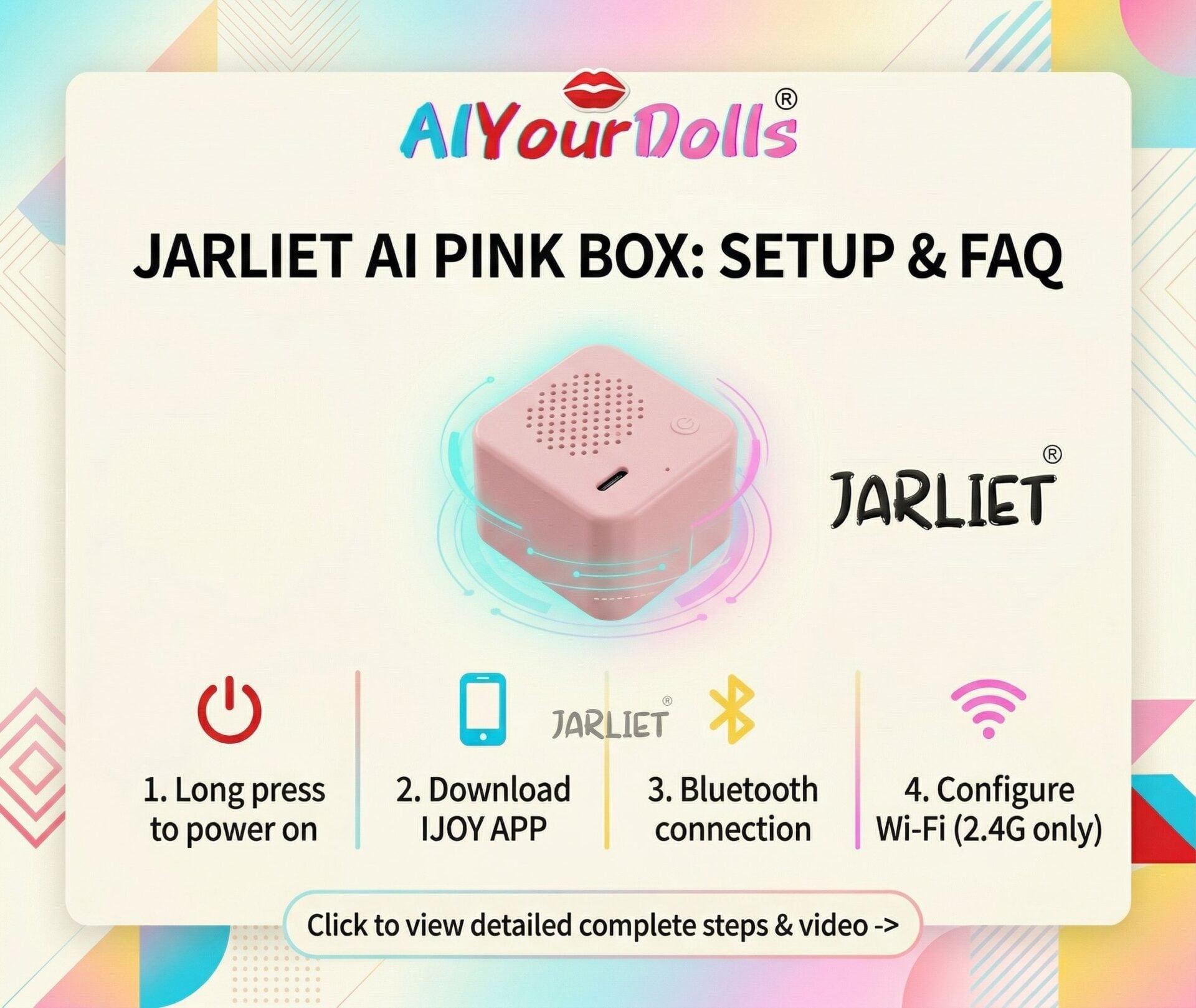
Step 1: Download the “IJOY” App
- Option A: Open your phone’s App Store (iOS) or Google Play Store (Android) and search for “Ijoy”. Look for the app with the purple icon (as seen in the video) and download it.
- Option B: Alternatively, scan the QR code provided in your product manual using your phone’s browser or camera.
Step 2: Power On the Device
- Locate the power button on the pink sound box.
- Long-press the power button until the device turns on. You will see the indicator light flash (red) and hear a voice prompt letting you know it is ready for network configuration.
Step 3: Open the App and Log In
- Open the IJOY app on your phone.
- Agree to the user terms and log in. (You can quickly sign in using third-party options like “Sign in with Apple,” as shown in the video, or register an account).
Step 4: Connect the Device via Bluetooth
- Ensure your phone’s Bluetooth is turned ON.
- On the app’s home page, tap the “Connect to the device” button.
- Keep the pink box close to your phone. The app will automatically search for the device (it will typically appear as something like AIBoxBK Max).
- Tap “Connect”.
Step 5: Configure Your Wi-Fi Network
- Once the Bluetooth connects, tap “Configure Network”.
- Follow the on-screen prompts to enter your Wi-Fi network name and password, then tap “Connect and Configure Network”.
- ⚠️ IMPORTANT NOTE: The device only supports 2.4GHz wireless networks. Please ensure your home Wi-Fi or mobile hotspot is set to 2.4G. It will not connect to a 5G network.
Step 6: You’re Ready!
- When the connection is successful, the sound box will play a prompt tone, and the indicator light will turn solid blue.
- Your Jarliet AI is now connected, and you can start your conversation!
 US Local Warehouse
 Europe Local Warehouse
 Acarna Torso Doll
 AiBei Doll
 AJL Doll
 AZM Doll (aiomi)
 Angel Kiss
 Butterfly Doll
 Climax(CLM) Doll
 Chocolate Lady
 Dolls Castle
 Elsa Babe Doll
 Evas Doll
 FANREAL Doll
 Firefly Diary Doll
 Fire Doll
 Funwest Doll
 Galatea Doll
 Gamelady Dolls
 Gynoid Doll
 iDo Doll
 Irontech Doll
 Jarliet Doll
 Jiusheng Doll
 KiraDols Doll
 Kulovedoll
 JX Doll
 Lusandy Doll
 LingMo Doll
 MD Doll
 MMX Doll
 Nianta Doll
 Orange In Doll
 PrimeSexDoll
 Qita Doll
 Real Lady
 Realing Dolls
 Ridmii Doll
 Rosretty Doll
 SHEDoll
 Sino Doll
 Sigafun Dolls
 Starpery Doll
 SEDoll
 SY Doll
 Tantaly Dolls
 TopCY Doll
 Top Fire Doll
 WM Doll
 XNX Doll
 XT Doll
 XYDoll
 Zelex Doll
 Male Masturbators-Mini Sex Toy
 Custom Doll Head By Photos
 Buy Replacement Heads(Sold Separately)
 Buy Funwest TPE Heads
 Buy Gamelady Doll Heads
 Buy Irontech & Real Lady Silicone Doll Heads
 Buy Kiradols Head Silicone Anime
 Doll Clean | Dry | Disinfection | Repair Accessories
 Doll Storage & Display
 Smart AI & Interactive Upgrades
 Buy Replacement Head (Sold Separately)
 Doll Clean | Dry | Disinfection | Repair Accessories
 Doll Storage & Display